Carleton-Lecture-Downloader
# Carleton Lecture Downloader
**A lightweight Chrome extension for downloading lecture videos from Brightspace and Mediaspace.**
[](https://chromewebstore.google.com/detail/iokaghgiknoaonaimicjdjgjmcmpjeno?utm_source=item-share-cb)
[](LICENSE)

Overview
Carleton Lecture Downloader lets you save Brightspace and Mediaspace lecture recordings directly to your computer. Copy the video’s debug info, click the extension, and download. No sign-in, no tracking, no data collection.
NOTE: This project is an independent initiative and is not affiliated with Carleton University.
Features
| Feature | Description |
|---|---|
| Auto Download | Automatically pulls debug info from your clipboard to initiate a high-quality download. |
| Manual Mode | Use this as a backup if Auto Mode fails, manually paste your link or data to trigger the download. |
| Fast & Lightweight | Minimal footprint, no background processes or heavy dependencies. |
| No Sign-in Required | Works out of the box with zero account or registration steps. |
| Privacy First | No user data is collected, stored, or transmitted. |
Installation
Chrome Web Store (Recommended)
- Visit the Chrome Web Store listing.
- Click “Add to Chrome”.
- The extension icon will appear in your toolbar.
Manual Installation (Developer Mode)
- Clone this repository:
git clone https://github.com/BenjaminHospodar/Carleton-Lecture-Downloader.git - Open
chrome://extensions/in Chrome. - Enable Developer mode (top-right toggle).
- Click “Load unpacked” and select the cloned
Carleton-Lecture-Downloaderfolder (the one containingmanifest.json). - The extension will appear in your toolbar.
Usage
Auto Download (Recommended)
- Navigate to a Brightspace or Mediaspace page with the lecture video.
-
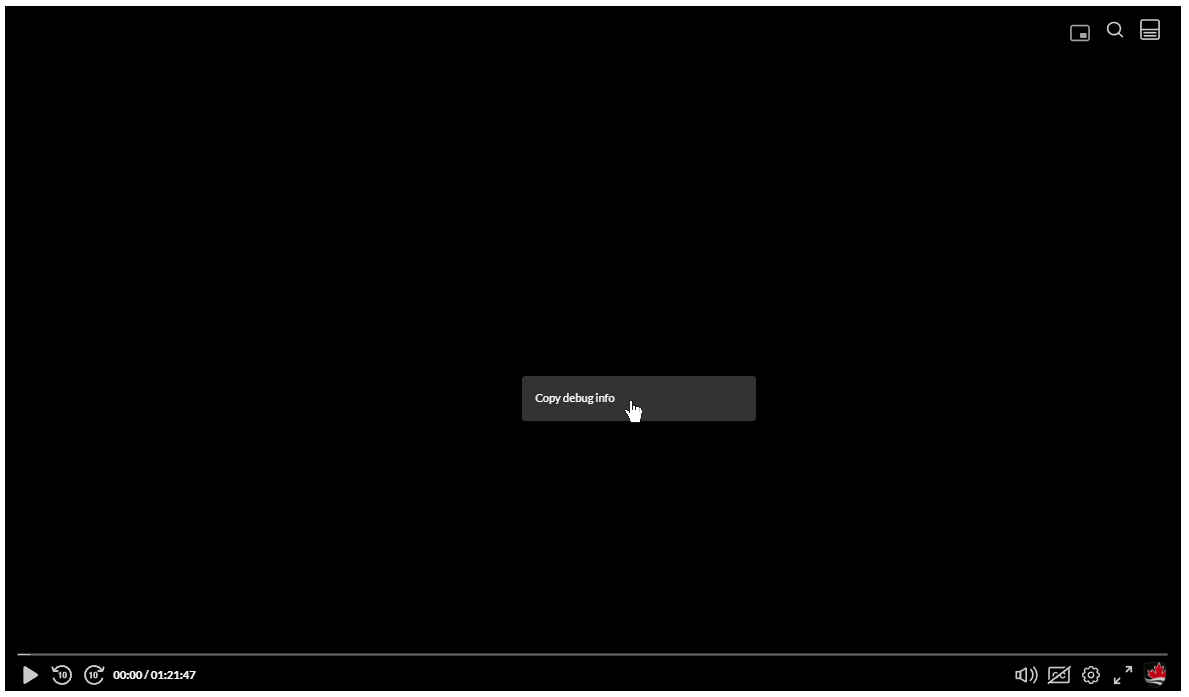
Right-click the video player and select “Copy debug info”.
- Click the extension icon in your toolbar.
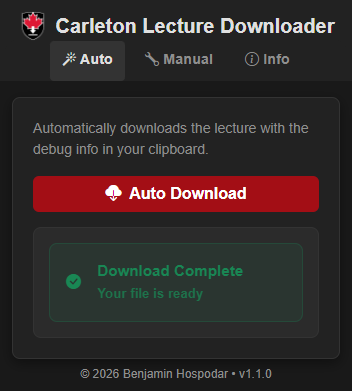
- Click “Auto Download”.
-
The video downloads automatically.
Manual Download (Choose Quality)
- Right-click the video player and select “Copy debug info” (same as above).
- Open the extension and switch to the Manual tab.
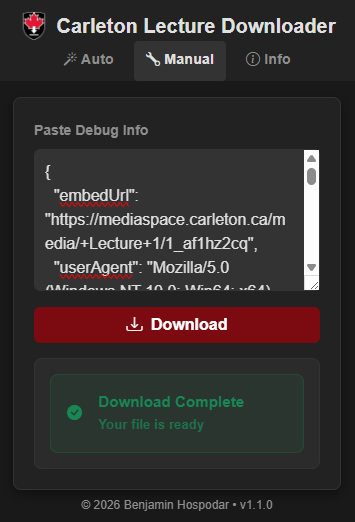
- Paste the debug info into the text box.
-
Click “Download”.
Project Structure
Carleton-Lecture-Downloader/
├── manifest.json
├── pages/
│   └── popup.html
├── src/
│   └── popup/
│       ├── index.js          # Entry point
│       ├── constants.js      # Config & message strings
│       ├── events.js         # Tab switching & button handlers
│       ├── download.js       # Fetch & download logic
│       ├── validator.js      # JSON validation & URL building
│       └── ui.js             # DOM refs & render helpers
├── static/
│   ├── css/
│   │   ├── bootstrap.min.css
│   │   ├── bootstrap-icons.min.css
│   │   └── popup-styles.css
│   ├── fonts/
│   │   ├── bootstrap-icons.woff2
│   │   └── bootstrap-icons.woff
│   └── img/
│       └── 128.png
├── docs/
│   └── img/
├── LICENSE
└── README.md
Troubleshooting
| Problem | Solution |
|---|---|
| Clipboard access denied | Use Manual mode — paste the debug info directly. |
| JSON error | Ensure you copied the correct debug info from the video player’s right-click menu. |
| Download fails | Check your internet connection and verify the video is accessible in your browser. |
Support
- Bug Reports — Open an issue
- Questions — Start a discussion
License
This project is licensed under the MIT License — see LICENSE for details.
**© 2026 Benjamin Hospodar**